

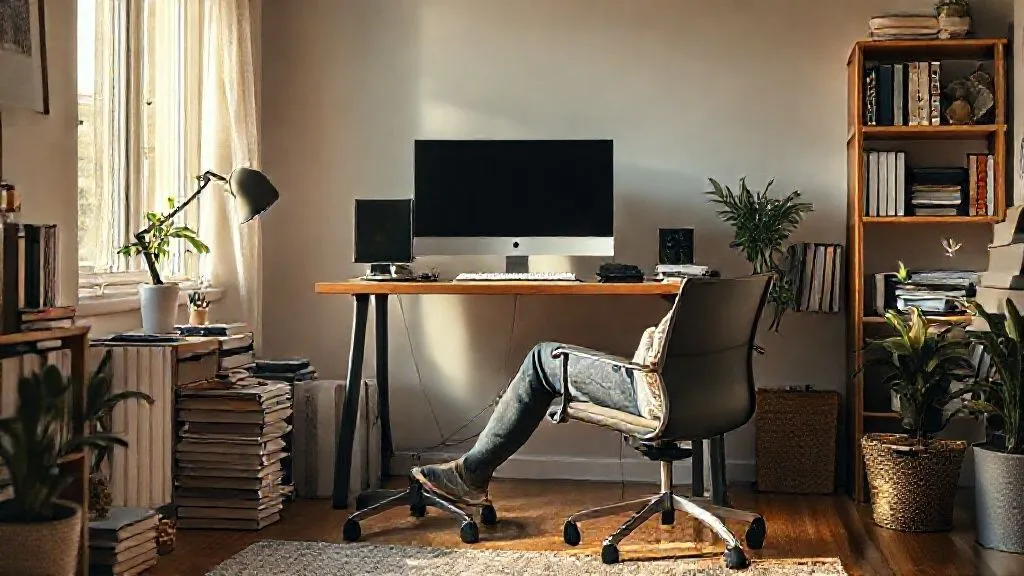
How to set up an ergonomic home office on a tight budget?
For over two decades in the world of remote work and digital transformation, I've witnessed a significant shift in how we approach our workspaces. What started as a temporary fix for many has evolved into a permanent fixture, yet one common oversight persists: the assumption that an ergonomic setup is an expensive luxury. I've seen countless professionals struggle with discomfort, fatigue, and even chronic pain, all stemming from a poorly configured home office.
The truth is, neglecting ergonomics isn't just about minor aches; it's a direct threat to your productivity, long-term health, and overall well-being. From persistent back pain to carpal tunnel syndrome and eye strain, the cumulative effects of a non-ergonomic setup can derail your career and quality of life. Many believe that achieving comfort and proper posture requires shelling out thousands on specialized equipment, creating a barrier for those operating on a tight budget.
But what if I told you that a truly effective, healthy home office setup doesn't have to cost a fortune? In this definitive guide, I'll draw upon my extensive experience to show you precisely how to set up an ergonomic home office on a tight budget. We'll explore actionable, expert-backed strategies, clever DIY solutions, and smart purchasing decisions that will transform your workspace into a haven of comfort and efficiency, without draining your wallet.
Understanding Core Ergonomic Principles (Without the Price Tag)
Before we dive into specific solutions, it's crucial to grasp the fundamental principles of ergonomics. It's not about expensive gear; it's about aligning your body in a neutral, relaxed posture to minimize strain and maximize efficiency. Think of it as creating a harmonious relationship between you and your workspace.
The core idea is to keep your joints (wrists, elbows, hips, knees) at approximately 90-100 degrees, your feet flat on the floor or a footrest, and your head balanced directly over your spine. Your monitor should be at arm's length, with the top of the screen at or slightly below eye level. Your keyboard and mouse should be close to your body, allowing your shoulders to relax.
"Ergonomics isn't just about comfort; it's about injury prevention. Investing a little time in understanding these principles now can save you years of pain and medical bills later."
Many people focus solely on the chair, but true ergonomics is holistic. It encompasses your desk height, monitor placement, input devices, lighting, and even your movement patterns throughout the day. Understanding this holistic view empowers you to make smart, budget-friendly adjustments that collectively create a significant impact.
A great starting point is to simply observe your current setup. Where do you feel tension? Are you slouching? Is your neck craned? These observations are your first clues to areas needing ergonomic attention, all before spending a single dollar. According to the Occupational Safety and Health Administration (OSHA), proper workstation design can significantly reduce musculoskeletal disorders. You can find comprehensive guidelines on their website.
Smart Seating Solutions: Comfort on a Shoestring Budget
Your chair is often the cornerstone of your ergonomic setup, but a top-tier ergonomic chair can easily cost hundreds, if not thousands. When you're learning how to set up an ergonomic home office on a tight budget, the good news is that you can achieve significant improvements with minimal investment, often by leveraging what you already have.
Optimizing Your Existing Chair
Don't dismiss your current chair just yet. Many basic office chairs or even dining chairs can be made more ergonomic with a few clever additions:
- Add Lumbar Support: A rolled-up towel, a small cushion, or even a firm pillow placed at the curve of your lower back can provide crucial lumbar support, encouraging a natural spinal curve.
- Enhance Seat Comfort: If your seat is too hard or worn, a firm seat cushion can make a world of difference. Look for memory foam or gel cushions, often available for under $30.
- Adjust Armrests (or Improvise): If your chair has adjustable armrests, set them so your elbows are at a 90-degree angle, supporting your forearms. If not, consider using soft armrest covers or even a small cushion on a non-adjustable armrest to raise and soften the support.
- Ensure Foot Support: Your feet should be flat on the floor. If they dangle, use a sturdy box, a stack of books, or a dedicated footrest to elevate them. This reduces pressure on your thighs and improves circulation.
Remember, the goal is to create a neutral posture. Experiment with these additions until you feel properly supported and aligned. It's an iterative process, and what works for one person might need slight adjustment for another.
Secondhand Savvy: Hunting for Bargains
If your current chair simply isn't cutting it, the secondhand market is a treasure trove for finding quality ergonomic chairs at a fraction of their retail price. I've personally helped clients furnish entire remote teams this way.
- Where to Look: Check local classifieds (Craigslist, Facebook Marketplace), office liquidation sales, university surplus stores, and even thrift shops. Many businesses upgrade their furniture, selling off perfectly good ergonomic chairs.
- What to Prioritize: When inspecting a used chair, focus on adjustability. Can you adjust the seat height, back tilt, and armrests? Is the pneumatic cylinder working? Look for reputable brands like Herman Miller, Steelcase, or Haworth – even older models offer superior ergonomics compared to new budget chairs.
- Test Before You Buy: If possible, sit in the chair for at least 5-10 minutes. Adjust everything. Does it feel stable? Are there any creaks or wobbles? A little wear and tear is acceptable, but major functional issues are not.
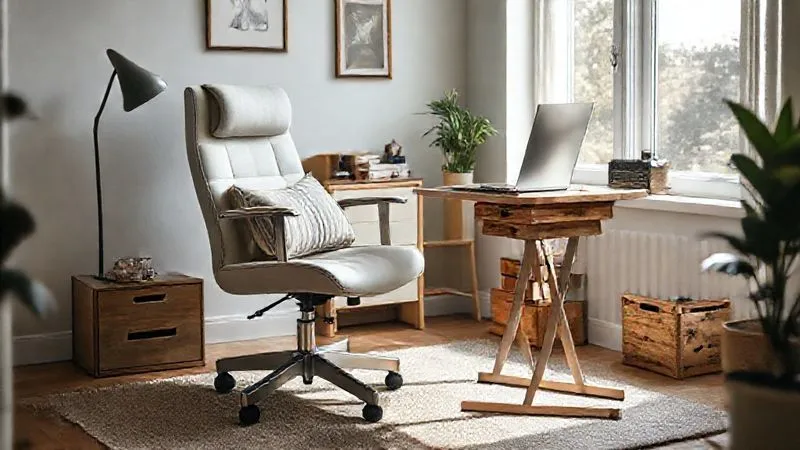
With a bit of patience and a keen eye, you can secure an excellent ergonomic foundation for your home office. It's about smart hunting, not deep pockets.
Desk Dynamics: Affordable Alternatives to Standing Desks
Just like chairs, ergonomic desks can be pricey. However, achieving proper desk height and flexibility, especially if you desire a sit-stand option, is entirely possible when you're mastering an ergonomic home office setup on a tight budget.
DIY Monitor Risers & Keyboard Trays
The most common desk-related ergonomic mistake is having your monitor too low, leading to neck strain. Elevating your screen is often the easiest and cheapest fix:
- Stack of Books: This is the classic, zero-cost solution. Use sturdy, hardback books to raise your monitor to eye level. Ensure they form a stable base.
- Sturdy Boxes or Crates: Decorative storage boxes or even clean, sturdy shipping crates can serve as excellent monitor risers. Paint them or cover them with fabric to match your decor.
- DIY Wooden Riser: For a slightly more polished look, a simple piece of wood cut to size and placed on two smaller blocks can create a custom riser. This might involve a trip to a hardware store for a few dollars.
- External Keyboard & Mouse: If you're using a laptop, an external keyboard and mouse are non-negotiable for ergonomics. This allows you to raise your laptop screen while keeping your hands at a comfortable typing height.
For keyboard trays, while commercial options exist, you can improvise by ensuring your chair's armrests are at the correct height to support your forearms, effectively bringing your keyboard closer and lower. Some people even use a sturdy lap desk while sitting on a comfortable couch or bed for short bursts, though this isn't ideal for long-term ergonomic posture.
Creating a Sit-Stand Workflow on a Budget
The benefits of alternating between sitting and standing are well-documented. You don't need an expensive standing desk to achieve this:
- Tabletop Converter: Look for used or discounted tabletop standing desk converters. These sit on top of your existing desk and can be raised or lowered.
- Elevated Surfaces: Identify different surfaces in your home. A kitchen counter, a tall dresser, or even a sturdy ironing board can serve as a temporary standing desk. Simply move your laptop (with external keyboard/mouse) to this surface for periods of standing work.
- Scheduled Movement: Even without a dedicated standing desk, simply standing up, stretching, and walking around every 30-60 minutes is incredibly beneficial. Set a timer as a reminder.
Here's a comparison of some budget-friendly desk options:
| Option | Cost Range | Pros | Cons |
|---|---|---|---|
| DIY Monitor Riser (Books/Boxes) | $0 - $10 | Virtually free, customizable, immediate impact | May not look professional, stability can vary |
| Used Standing Desk Converter | $50 - $150 | Provides sit-stand flexibility, more refined look than DIY | Can be bulky, still an upfront cost |
| Existing Countertop/Surface | $0 | No cost, encourages movement, utilizes existing home features | Less customizable, may not be ideal height for everyone |
The key is to create variety in your posture throughout the day. Your body isn't designed to stay static for hours on end, regardless of how ergonomic your setup is.
Input Devices: Ergonomic Keyboards & Mice That Won't Break the Bank
Your hands and wrists are particularly vulnerable to repetitive strain injuries (RSIs) if your keyboard and mouse aren't set up correctly. While high-end ergonomic input devices can be costly, there are excellent budget-friendly options for those focused on how to set up an ergonomic home office on a tight budget.
Prioritizing Key Features for Budget Buys
When looking for affordable ergonomic keyboards and mice, focus on these features:
- Keyboard: Look for a split design or a slight tenting to keep your wrists in a neutral position. A padded wrist rest (even a DIY one from a towel or foam) can also help. The goal is to avoid ulnar deviation (bending your wrist outwards).
- Mouse: A vertical mouse is excellent for maintaining a 'handshake' grip, reducing forearm pronation. Alternatively, a trackball mouse keeps your wrist stationary. Even a standard mouse can be improved by ensuring it's close to your body and you're using your whole arm, not just your wrist, to move it.
- Wired vs. Wireless: Wired options are often cheaper and don't require batteries. Wireless offers flexibility but might be a slightly higher upfront cost.
You don't need the most advanced features, just those that promote a neutral wrist and hand position. Sometimes, even adjusting your typing technique can make a significant difference, focusing on light touches rather than forceful keystrokes.
Exploring Used & Entry-Level Ergonomic Options
The secondhand market is once again your friend. Refurbished electronics retailers often have great deals on ergonomic keyboards and mice that have been professionally cleaned and tested. Entry-level ergonomic brands also offer surprisingly effective solutions.
- Online Retailers: Keep an eye on sales from brands like Perixx, Anker, or Jelly Comb for budget-friendly vertical mice and ergonomic keyboards. These brands often provide good value for money.
- Refurbished Market: Websites specializing in refurbished electronics can offer significant discounts on slightly older models from major brands. Always check the seller's reputation and warranty.
- Trackpads/Tablets: For some tasks, consider using a large trackpad or even a drawing tablet. These can offer a different hand position and reduce repetitive mouse movements.
Case Study: How Sarah Transformed Her Wrist Pain
Sarah, a freelance graphic designer, initially dismissed her wrist discomfort as "part of the job." She was using a standard laptop keyboard and a tiny travel mouse for 8-10 hours a day. Her budget was extremely tight, so she believed ergonomic gear was out of reach. After experiencing persistent numbness and tingling, she decided to make a change based on my advice. Instead of buying a $200 ergonomic keyboard, she invested $35 in a basic split keyboard from an online retailer and $20 in a vertical mouse. She also started using a rolled-up sock as a DIY wrist rest. Within two weeks, her symptoms significantly reduced, and after a month, they were almost entirely gone. This small, under-$60 investment not only alleviated her pain but also boosted her productivity and allowed her to continue her demanding work, proving that achieving an ergonomic home office setup is entirely feasible with smart choices, even on a tight budget.
Lighting & Environment: Setting the Mood for Productivity
Often overlooked, the lighting and overall environment of your home office play a critical role in your comfort, eye health, and productivity. You can optimize these aspects without spending a fortune, which is key when you're aiming for an ergonomic home office setup on a limited budget.
Natural Light Maximization
The best light source is often free: natural sunlight. Position your desk to take advantage of natural light, ideally with the window to your side. Facing the window directly can cause glare on your screen, and having it behind you can create screen reflections and shadows.
- Avoid Glare: If direct sunlight is an issue, use sheer curtains or blinds to diffuse the light.
- Reduce Eye Strain: Natural light helps regulate your circadian rhythm and reduces eye strain compared to artificial light alone.
- Boost Mood: Exposure to natural light has been linked to improved mood and cognitive function.
Affordable Task Lighting Solutions
Even with natural light, you'll need supplemental lighting, especially during darker hours or for specific tasks. The goal is even, diffused light that minimizes shadows and glare.
- Desk Lamps: A basic desk lamp with an adjustable arm allows you to direct light where you need it most. Look for LED bulbs, which are energy-efficient and long-lasting.
- Avoid Overhead Glare: If your overhead lighting causes glare on your screen, consider turning it off and relying on task lighting and ambient room lighting.
- Warm vs. Cool Light: Generally, warmer light (2700K-3000K) is more relaxing, while cooler light (4000K-5000K) is better for focus. Experiment to see what works best for you.
Minimizing Glare & Eye Strain
Beyond lighting, there are other cheap ways to protect your eyes:
- Monitor Position: As mentioned, top of the screen at eye level, arm's length away.
- Screen Settings: Adjust your monitor's brightness, contrast, and color temperature to reduce strain. Many operating systems have a "Night Light" or "True Tone" feature that reduces blue light in the evenings.
- The 20-20-20 Rule: Every 20 minutes, look at something 20 feet away for at least 20 seconds. This simple exercise can significantly reduce eye fatigue.
- Clean Screen: A dusty or smudged screen can cause glare and make text harder to read. A quick wipe can make a difference.
These small, often free, adjustments can have a profound impact on your visual comfort and prevent headaches and fatigue, proving that ergonomics isn't always about spending money.
Movement & Micro-Breaks: Your Best Ergonomic Tool is Free
Even the most perfectly adjusted ergonomic setup cannot counteract the negative effects of prolonged static posture. This is a critical insight I've shared with countless clients over the years: your body is designed to move. Integrating movement and micro-breaks is arguably the most powerful, and certainly the cheapest, ergonomic tool at your disposal when optimizing your home office on a tight budget.
The Power of Regular Movement
Sitting or standing in one position for too long restricts blood flow, stiffens muscles, and can lead to discomfort and long-term health issues. Regular movement counteracts these problems:
- Stand Up Regularly: Aim to stand and stretch every 30-60 minutes. Even if you don't have a standing desk, simply getting up, walking to get water, or doing a quick stretch can break the static cycle.
- Change Postures: Don't feel you have to maintain one "perfect" ergonomic posture all day. Shift, stretch, and adjust. Slight movements are natural and beneficial.
- Walk During Calls: If you have phone calls or virtual meetings where you don't need to be on camera, take the opportunity to walk around your home or even step outside.
"Your best ergonomic chair is the one you get out of regularly." This wisdom underscores the importance of dynamic movement over static perfection.
According to research published by the Mayo Clinic, regular physical activity and breaking up sedentary time can significantly reduce the risk of various health problems, including cardiovascular disease and type 2 diabetes. You can explore more about the dangers of prolonged sitting and the benefits of movement here.
Integrating Short Breaks into Your Workflow
Micro-breaks are short interruptions to your work that allow your body and mind to reset. They don't need to be long or elaborate:
- Stretch Breaks: Simple neck rolls, shoulder shrugs, wrist circles, and back stretches can relieve tension.
- Eye Breaks: Implement the 20-20-20 rule.
- Mindful Moments: Take a few deep breaths, step away from your screen, and let your mind wander for a minute or two.
- Hydration Breaks: Keep a water bottle nearby and use refills as an excuse to stand up and walk.
Many free apps and browser extensions can remind you to take breaks. Set a timer, and when it goes off, commit to a 2-5 minute break. These small interruptions actually boost productivity by preventing fatigue and improving focus when you return to your task.
Cable Management & Organization: Declutter for Clarity and Safety
A messy, tangled workspace isn't just an eyesore; it can be an ergonomic hazard, causing tripping risks, restricting movement, and creating unnecessary mental clutter. Achieving a tidy, organized home office is surprisingly easy and very budget-friendly, a crucial step in learning how to set up an ergonomic home office on a tight budget effectively.
Simple, Low-Cost Cable Solutions
Taming the cable monster doesn't require expensive cable management systems. Here are some effective, cheap solutions:
- Velcro Ties: Reusable and versatile, velcro ties are inexpensive and perfect for bundling cables together.
- Zip Ties: For more permanent bundles, zip ties are very affordable. Just be careful when cutting them off not to snip a cable.
- Binder Clips: Large binder clips can be clipped to the edge of your desk. Thread cables through the metal loops to keep them from falling behind your desk.
- Toilet Paper/Paper Towel Rolls: For storing coiled cables when not in use, these cardboard tubes are perfect and free.
- Cable Sleeves/Wraps: While some can be pricey, basic fabric or neoprene cable sleeves are available cheaply and can neatly bundle multiple cables.
The goal is to keep cables off the floor where they can be tripped over and to prevent them from pulling on your devices or restricting your movement. A tidy cable setup also makes it easier to clean your workspace, contributing to a healthier environment.
The Psychological Benefits of an Organized Space
Beyond physical safety and aesthetics, an organized workspace has significant psychological benefits. A cluttered environment can contribute to stress and reduce focus, while a clean space promotes clarity and calm.
- Reduced Stress: Less visual clutter means less mental clutter.
- Improved Focus: Without distractions, your brain can dedicate more resources to the task at hand.
- Enhanced Productivity: Finding what you need quickly saves time and frustration.
- Professionalism: Even if only you see your home office, a well-organized space fosters a sense of professionalism and readiness for work.
A simple decluttering session, which costs nothing but time, can be one of the most impactful steps you take towards an ergonomic and productive home office. As behavioral economist Dan Ariely often points out, our environment subtly but powerfully influences our behavior and decision-making. His work often touches on how small environmental changes can lead to big behavioral shifts.
Mindset Matters: Embracing Iteration and Self-Awareness
Ultimately, setting up an ergonomic home office on a tight budget isn't a one-time event; it's an ongoing process of listening to your body, making small adjustments, and embracing an iterative approach. As an industry specialist, I've observed that the most successful remote workers are those who are self-aware and proactive about their well-being.
Listen to Your Body
Your body is the best feedback system you have. Pay attention to any discomfort, aches, or stiffness. These are not minor inconveniences; they are signals that something in your setup or routine needs attention. If you start to feel neck pain, check your monitor height. If your wrists ache, evaluate your keyboard and mouse position. Don't ignore these early warning signs.
- Regular Self-Checks: Periodically assess your posture throughout the day. Are your shoulders hunched? Is your back rounded?
- Document Discomfort: If you experience recurring pain, note when it occurs and what you were doing. This helps identify patterns and potential culprits.
- Seek Professional Advice: If pain persists or worsens despite your adjustments, consult a doctor or physical therapist. Early intervention is crucial.
Continuous Improvement on a Budget
You don't need to buy everything at once. Start with the most impactful, cheapest changes first. Perhaps that's a rolled towel for lumbar support and a stack of books for your monitor. Live with those changes for a week or two, then reassess. As your budget allows, you can gradually upgrade or add components.
- Prioritize Needs: Address the most pressing ergonomic issues first. Neck pain? Focus on monitor and chair. Wrist pain? Focus on input devices.
- Incremental Upgrades: Instead of buying a $1000 chair, perhaps a $50 seat cushion and a $30 footrest make a huge difference. Later, you might invest in a refurbished ergonomic chair.
- Resourcefulness: Continue to look for DIY solutions, secondhand bargains, and sales. The market for remote work accessories is always evolving, and deals appear regularly.
Remember, the goal is not perfection, but sustainable, healthy working habits. By being mindful and resourceful, you can create an ergonomic home office that supports your health and productivity for years to come, without the financial strain.
Frequently Asked Questions (FAQ)
Q: Is an ergonomic chair really necessary, or can I get by without one? A: While a high-quality ergonomic chair is ideal, it's not strictly "necessary" if you're on a tight budget and willing to be resourceful. Many people achieve excellent ergonomic posture by optimizing an existing chair with cushions, lumbar support, and a footrest. The critical factor is achieving proper spinal alignment and support, not the price tag of the chair. Furthermore, integrating regular movement breaks is often more impactful than any single piece of equipment.
Q: How often should I take breaks, and what kind of exercises are best? A: A good rule of thumb is the "20-20-20 rule" for your eyes, and to stand up and move for 2-5 minutes every 30-60 minutes. Simple exercises include neck rolls, shoulder shrugs, wrist circles, gentle back stretches (like cat-cow yoga poses), and walking around. The key is to break static postures and get blood flowing. Even a quick walk to grab water or look out a window is beneficial.
Q: What's the single most impactful change I can make on a very tight budget? A: If I had to pick just one, it would be ensuring your monitor is at the correct height – top of the screen at eye level, arm's length away. This is often achievable with a stack of books or a sturdy box and dramatically reduces neck and upper back strain. Following closely would be using an external keyboard and mouse if you primarily work on a laptop, allowing for proper monitor elevation.
Q: Can I use a laptop exclusively, or do I need an external monitor? A: While you *can* use a laptop exclusively, it's generally not recommended for long periods due to the inherent ergonomic compromise. If the screen is at eye level, your keyboard is too high; if your keyboard is comfortable, your screen is too low. Using an external monitor (even a cheap used one) and an external keyboard/mouse allows you to independently adjust screen and input device heights, creating a much healthier setup. If an external monitor isn't an option, prioritize screen height and take frequent breaks.
Q: How do I know if my setup is truly ergonomic? A: The best indicator is how your body feels at the end of the workday. If you're experiencing less pain, stiffness, or fatigue, you're likely on the right track. You can also perform a self-assessment: sit tall, feet flat, elbows at 90 degrees, wrists neutral, monitor at eye level. If you can maintain this posture comfortably, your setup is likely good. Consider taking photos of yourself at your desk and comparing them to ergonomic guidelines, or even asking a friend to observe your posture.
Key Takeaways and Final Thoughts
Mastering how to set up an ergonomic home office on a tight budget is not just about physical comfort; it's about investing in your long-term health, productivity, and overall career longevity. As we've explored, achieving a healthy workspace doesn't require a massive financial outlay. It demands awareness, resourcefulness, and a commitment to your well-being. Here are the critical takeaways:
- Prioritize Posture, Not Price Tags: Focus on the principles of neutral posture rather than expensive equipment.
- Optimize What You Have: Leverage existing furniture and clever DIY solutions like cushions, book risers, and footrests.
- Hunt for Bargains: The secondhand market is a goldmine for quality ergonomic chairs and input devices.
- Embrace Movement: Regular micro-breaks and changing postures are your most powerful, free ergonomic tools.
- Manage Your Environment: Good lighting and a clutter-free space significantly reduce strain and boost focus.
- Listen to Your Body: Your discomfort is a signal; iterate and adjust your setup based on how you feel.
Remember, your home office is an extension of your professional self. By applying these budget-friendly, expert-backed strategies, you're not just building a workspace; you're building a foundation for a healthier, more productive, and more sustainable remote work life. Take that first step today, even if it's just elevating your monitor with a stack of books. Your body, your mind, and your career will thank you for it.
Recommended Reading
- 7 Red Flags Angel Investors Spot in Early Startups (Avoid Them!)
- Prevent Customer Frustration: 7 Proven Ways for Digital Journey Transitions
- High Sales, Low Profit? 7 Cash Flow Fixes for Your Business
- 7 Steps: Make Your Business Analytics Dashboards Truly Actionable
- 7 Proven Steps: How Small Businesses Fix Low Website Conversion Rates





Comments
Leave a comment below. Your email will not be published. Required fields marked with *